|
About
SAMMD
Search
You can search sammd
using an ORF ID or using a Gene Name or using an ORF Product Name.
Search using an ORF ID
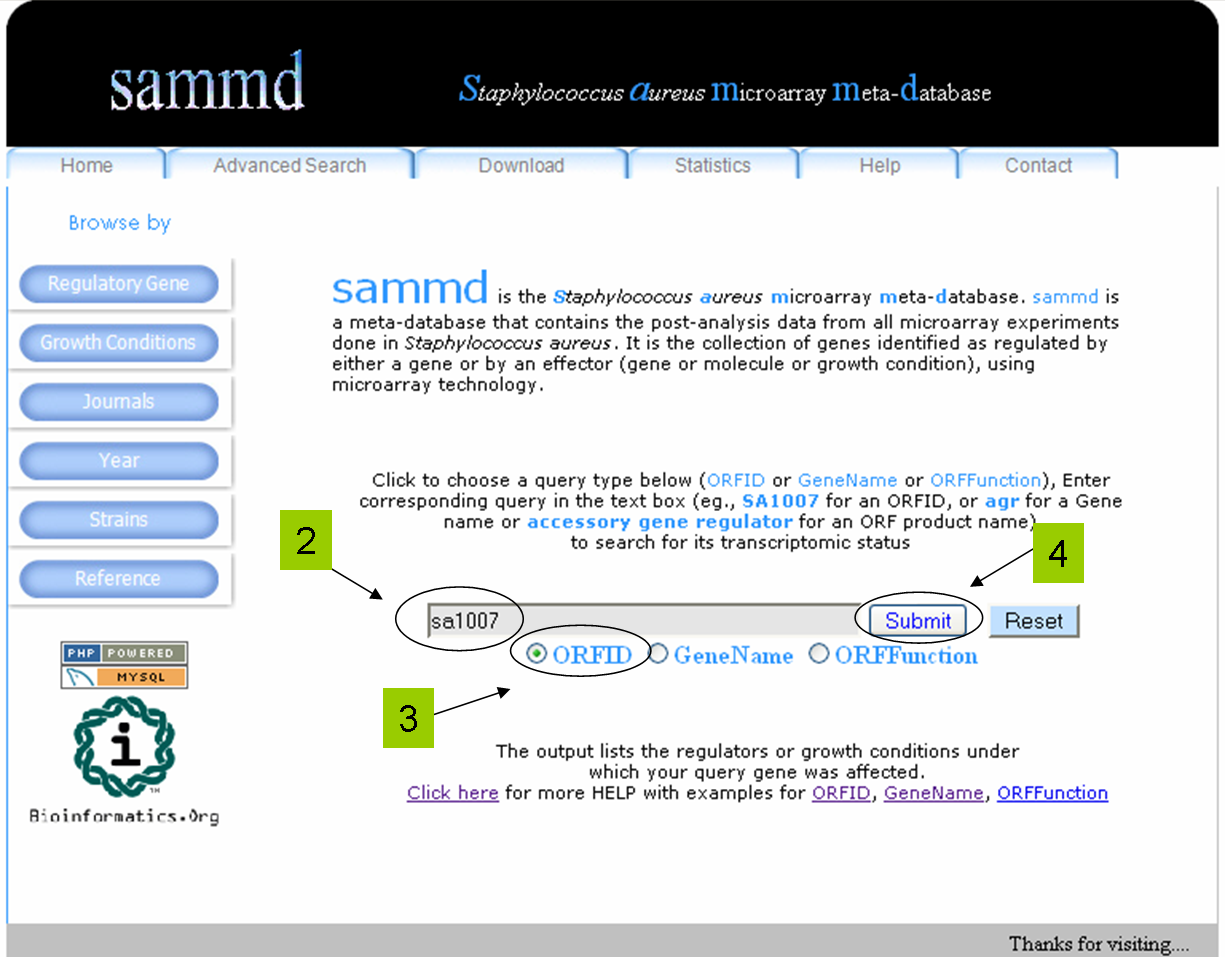
- You can search sammd
using ORF IDs from S. aureus strains N315 (eg.,
SA1007) or COL (eg.,
SACOL2737) or MW2 (eg.,
MW0848) or Mu50 (eg.,
SAV1433).
- Enter the ORF ID in the given text box. ID
could be entered in any case (both sa1007
and SA1007 are valid queries and
would return the same results)
- Select the ORFID option.
- Click the Search button.
- sammd maps your
ORF ID to N315 ID and returns the expression status of your
query ID under different experimental conditions.
- Remember to select the option
ORF ID before searching.
Search using a Gene Name
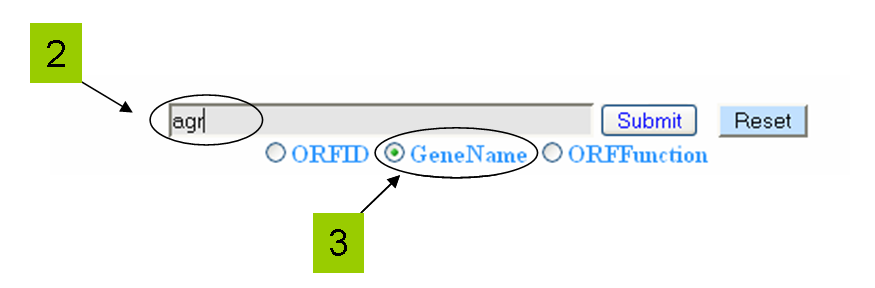
- You can search sammd
using a Gene name from S. aureus like
agr or agrA
or ure or
ureA etc.,
- Enter the Gene name in the given text box. Gene
name could be entered in any case ( for example, both
agr and AGR
are valid queries and would return the same results)
- Select GeneName option.
- Click the Search button.
- sammd lists all
the hits that match your query Gene Name.
- Click an ORF ID from the results to know its
expression status.
- Remember to select the option
GeneName before searching.
Search using a
ORF Product Name or Function
- sammd
lets you search using the ORF Product name or by function like
"accessory gene regulator" or
urease
or gyrase or
"dna polymerase" etc.,
- Enter the ORF or Gene product name in the given text box.
- Make sure to select the ORFFunction
option.
- Click the Search button.
-
For
ORFFunction option, users can query sammd
using Boolean operators AND,
NOT,
* and
"".
EXAMPLE searches using ORFFunction option
|
Search Term |
Result |
|
without any operator
urease gamma subunit |
Returns any name that contains 'urease' and 'gamma' or
'subunit', like;
urease alpha subunit
urease accessory protein, in
addition to
urease gamma subunit
Without any operators (AND or NOT), 'gamma', 'subunit'
becomes optional, in other words,
urease gamma subunit returns results similar to
urease OR gamma OR
subunit |
|
within double quotes ""
"urease gamma
subunit" |
Returns only
urease gamma subunit |
|
with AND operator
urease gamma AND
subunit |
Returns all names containing both urease AND subunit, like;
urease alpha subunit
urease beta subunit
urease gamma subunit |
|
with NOT and AND operator
urease NOT
gamma AND subunit |
Returns all names containing both urease AND subunit, but
NOT gamma, like;
urease alpha subunit
urease beta subunit |
|
with * wild card operator
transport* |
Returns all names containing words like;
transport
transporter
transporting |
Advanced Search
Your input for the advanced
search, could be in any one of these formats:
N315 orf ids separated by a new
line character
SA0107
SA0153
SA0253
SA0271
SA0899
SA0900
SA1007
SA1628
SA1630
SA1631
SA1842
SA1843
SA1844
N315 orf ids separated by a space
SA0107 SA0153 SA0253 SA0271 SA0899 SA0900 SA1007
SA1628 SA1630 SA1631 SA1842 SA1843
N315 orf ids separated by a comma
SA0107,SA0153,SA0253,SA0271,SA0899,SA0900,SA1007,SA1628,SA1630,SA1631,SA1842,SA1843
Compare
Datasets
You can analyze the differences and
similarities between any two or three transcriptomes that are
present in SAMMD, using "Compare Datasets" option, using the
following procedure:
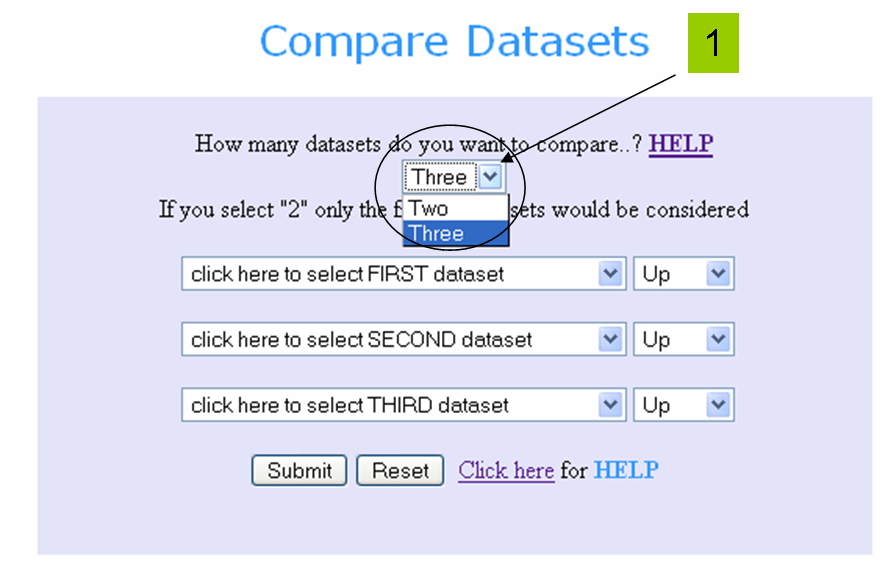
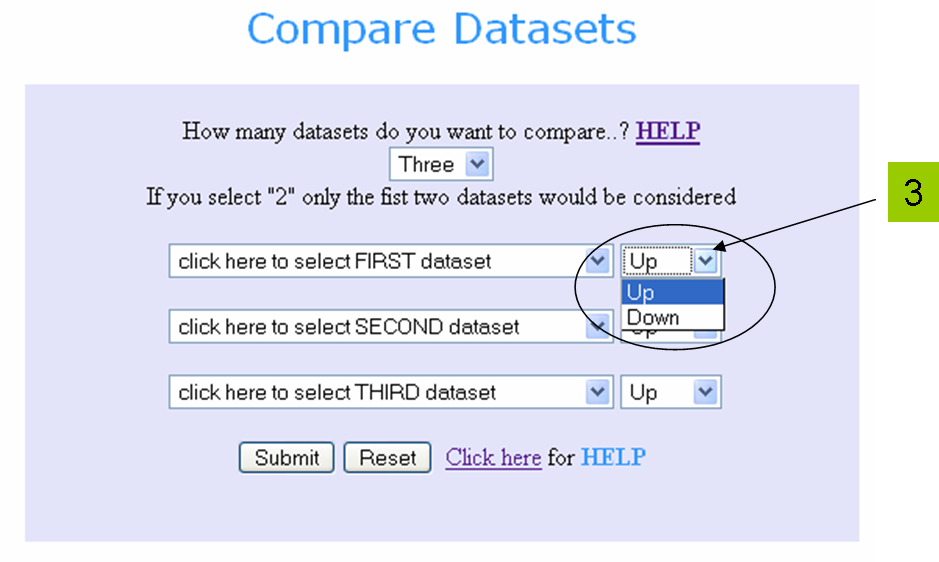
1. Select the number of
datasets you want to compare. By default
"Three" is the selected option. Click on the drop-down list
to select "Two" if you want to compare only TWO datasets.
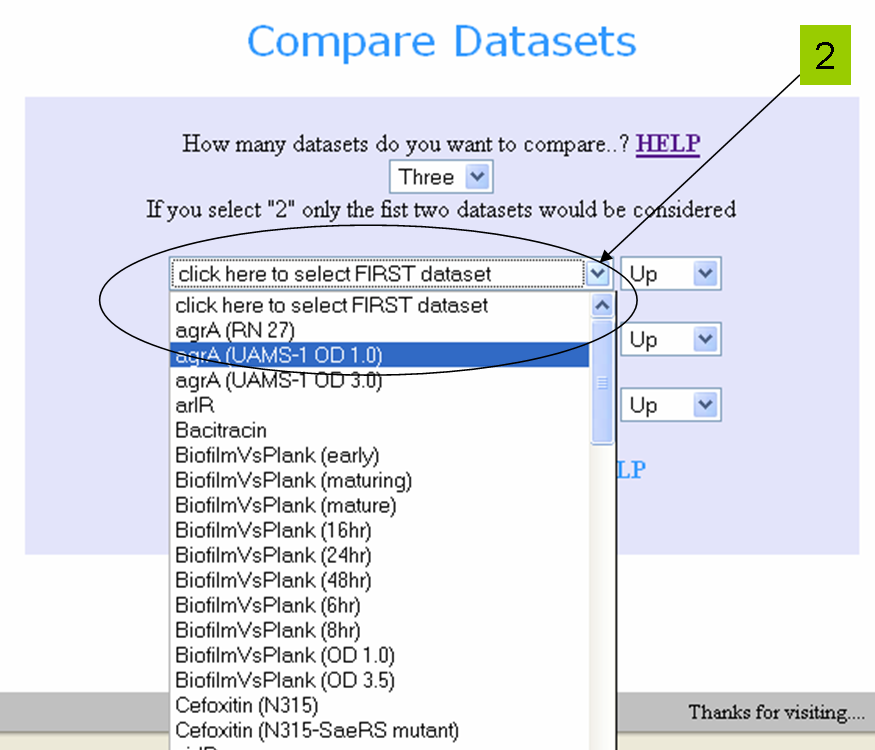
2.
If you want to compare TWO
datasets, select the first dataset by clicking on the "click
here to select FIRST dataset" drop-down list and choose the
dataset of your choice.
3.
For every dataset there is an upregulated gene list and a
downregulated gene list. You can choose either one of them for
comparison by selecting the Up
or Down option from the
drop-down list adjacent to each dataset selection drop-down list.
By default Up regulation is selected.
4.
Follow the same procedure to select the
second dataset and the third
dataset (if you choose to compare three datasets).
5.
Click the button "Submit" to do
the comparison.
6.
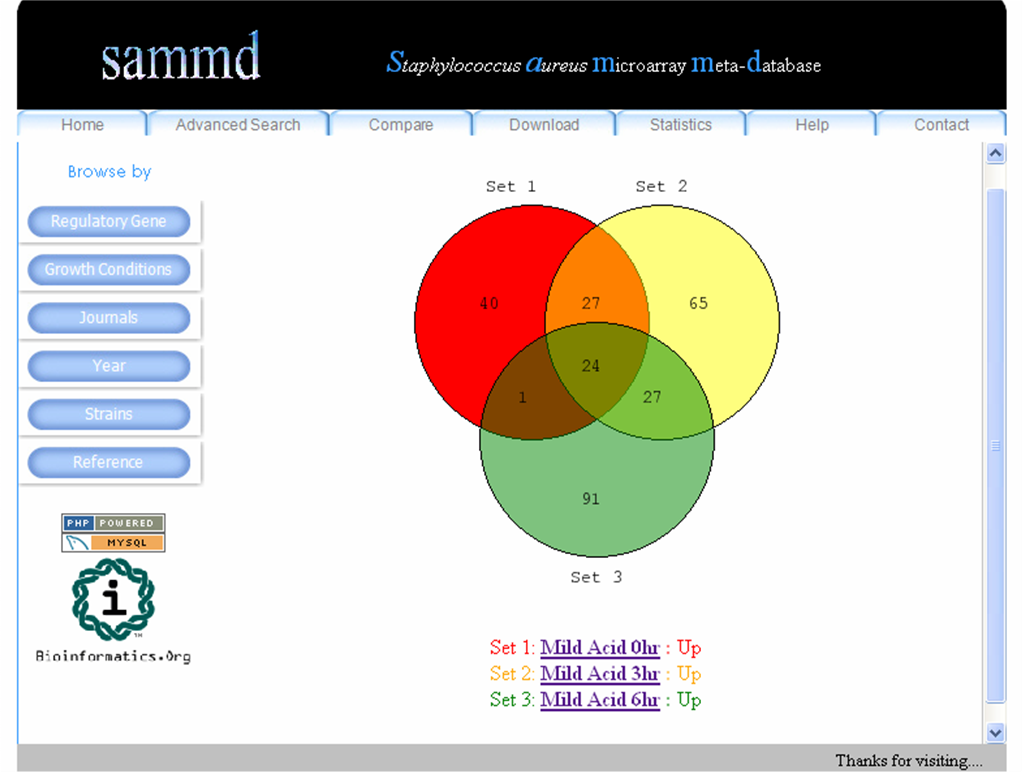
Set operations are performed on the submitted datasets and the
result is displayed as a
"Venn
Diagram".
7.
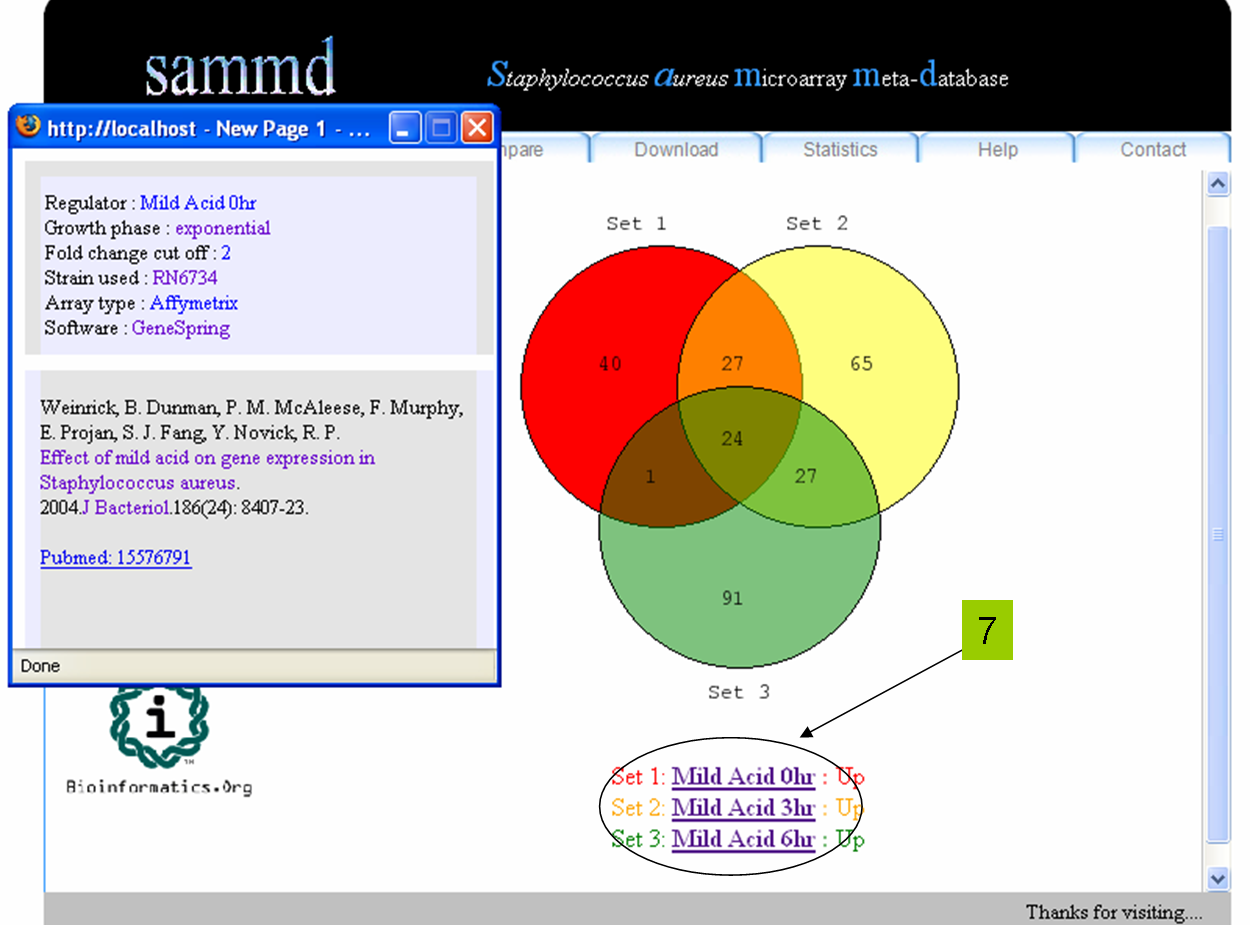
The Sets are labeled according to the
dataset name, in the bottom of the Venn Diagram, with their
corresponding Up or Down regulation
type. The dataset labels are linked to the corresponding experiment
details (clicking pops up
experimental details).
8.
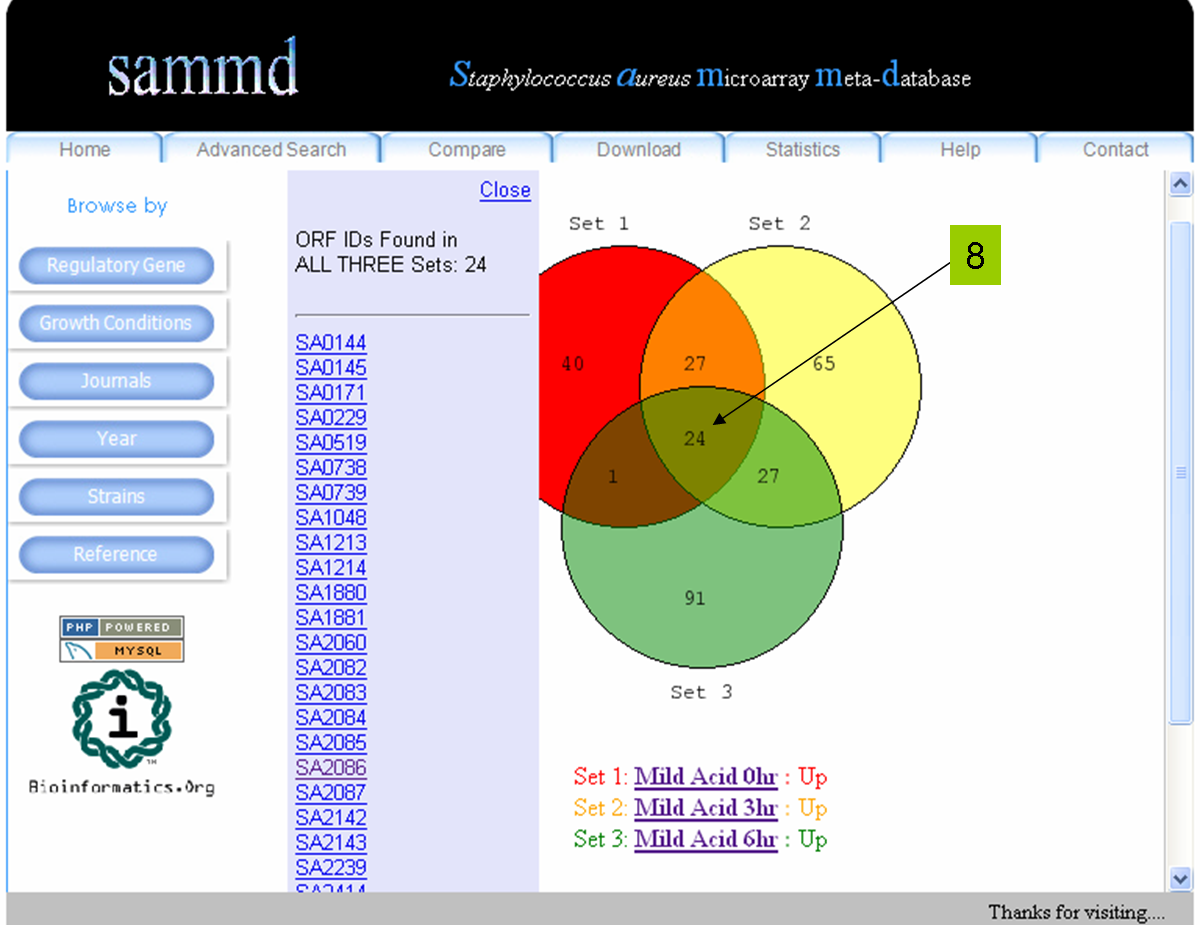
Clicking the numbers in the Venn Diagram
pops up the corresponding list of ORF IDs. The ORF IDs are linked to
their respective NCBI Gene entries.
9.
You can Right click on the picture (click just outside the circles
in the white space) and either copy or save
it.
Database Schema
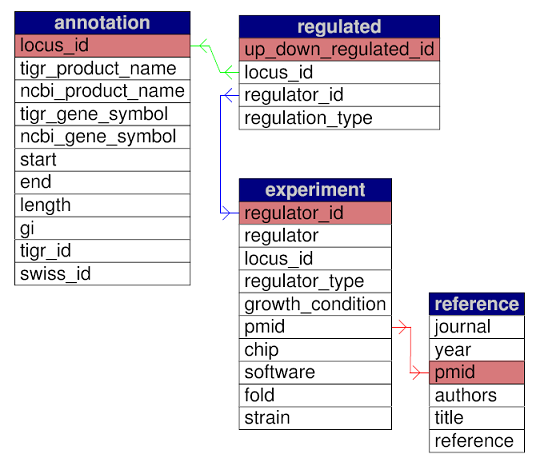
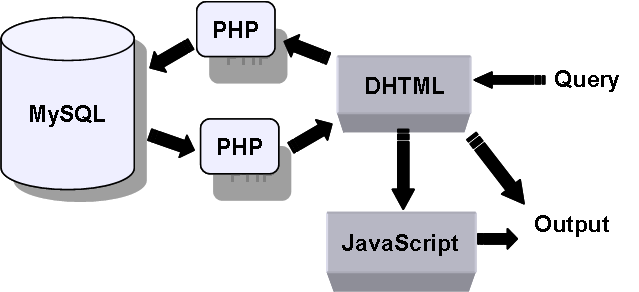
Implementation Scheme
|
